Prompt-first production matches the work.
Begin with a prompt, image, product link, script or existing Invideo project, then open the focused workflow built for that job.
Begin with a prompt, image, product link, script or existing Invideo project, then open the focused workflow built for that job.
Use this guide to choose the workflow, then confirm current access on the official Invideo page.
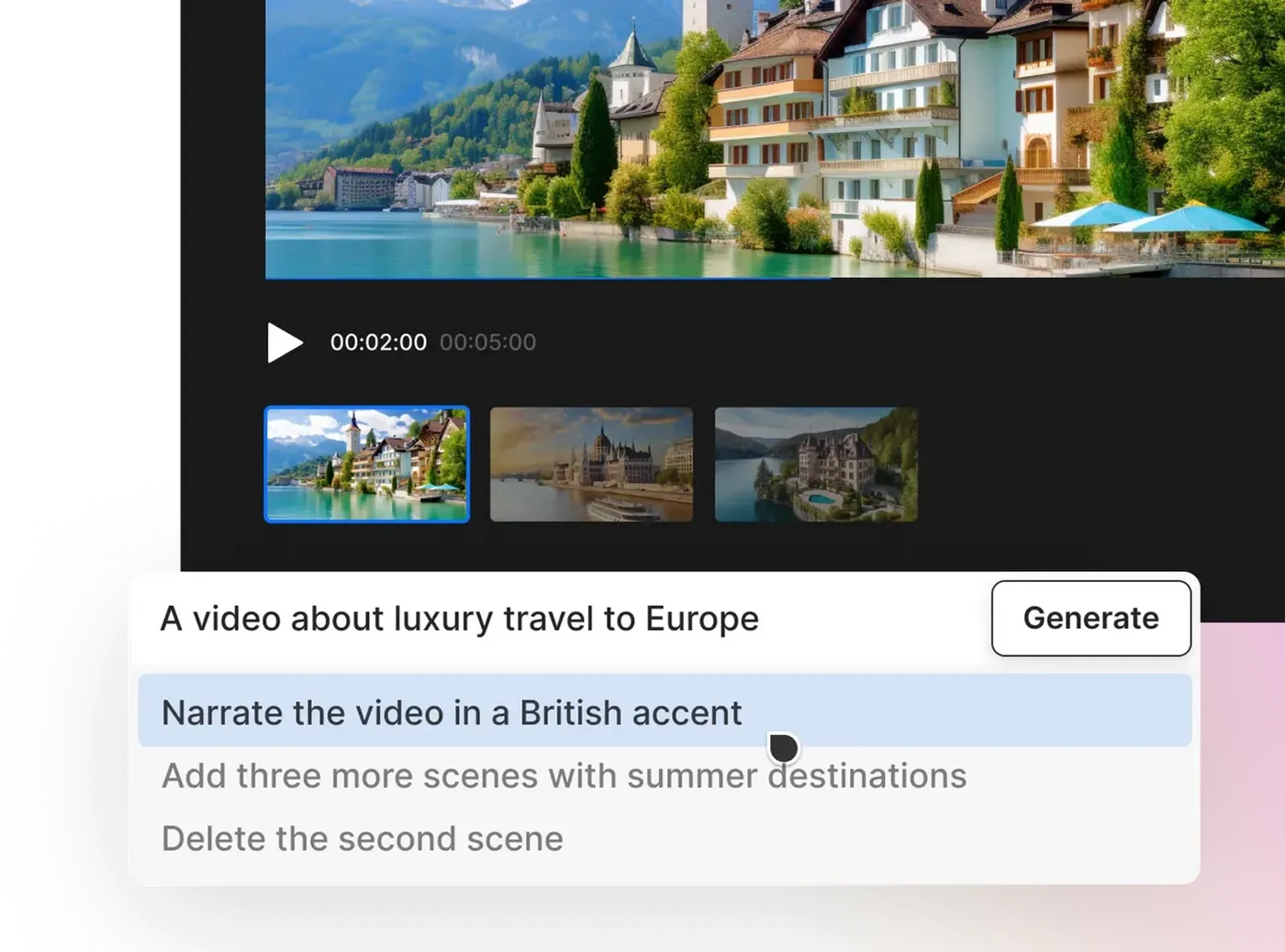
Begin with a prompt, image, product link, script or existing Invideo project, then open the focused workflow built for that job.
Begin with a prompt, image, product link, script or existing Invideo project, then open the focused workflow built for that job.
Start with the device, task or plan that fits the work in front of you—then move directly to the official CapCut tool.
Compare CapCut →Start from the material you already have: an idea, script, image, link or project.
Define audience, platform, duration, language, voice and visual direction.
Review the script and scenes, then use text instructions to improve the draft.
Build an initial script, visuals, voiceover, captions and music from a written brief.
Create ads, product videos, avatars and reusable campaign drafts.
Produce faceless videos, thumbnails, voiceovers and translated versions from one tool family.
Invideo offers workflows based on prompts, text, images, product links and existing projects.
Its AI product is prompt-led and text-editable, while Invideo Studio provides a more conventional online editor.
Invideo currently offers free account access, with generation and export allowances determined by the live plan.
Use the official pricing page and the credit information shown inside your account.
Begin with a prompt, image, product link, script or existing Invideo project, then open the focused workflow built for that job.
No page is hidden in the sitemap alone.
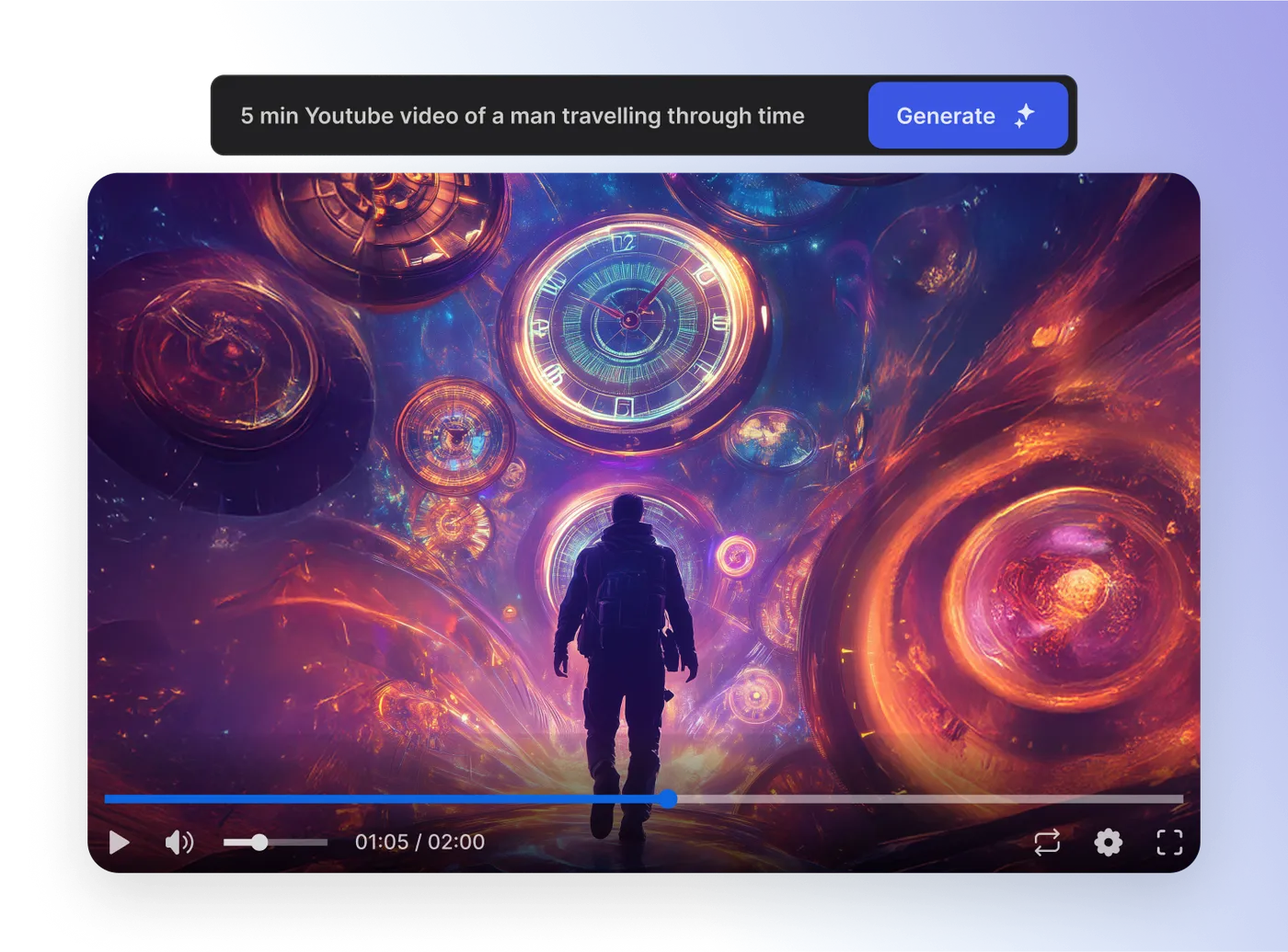
Begin with a prompt, image, product link, script or existing Invideo project, then open the focused workflow built for that job.
Open guide →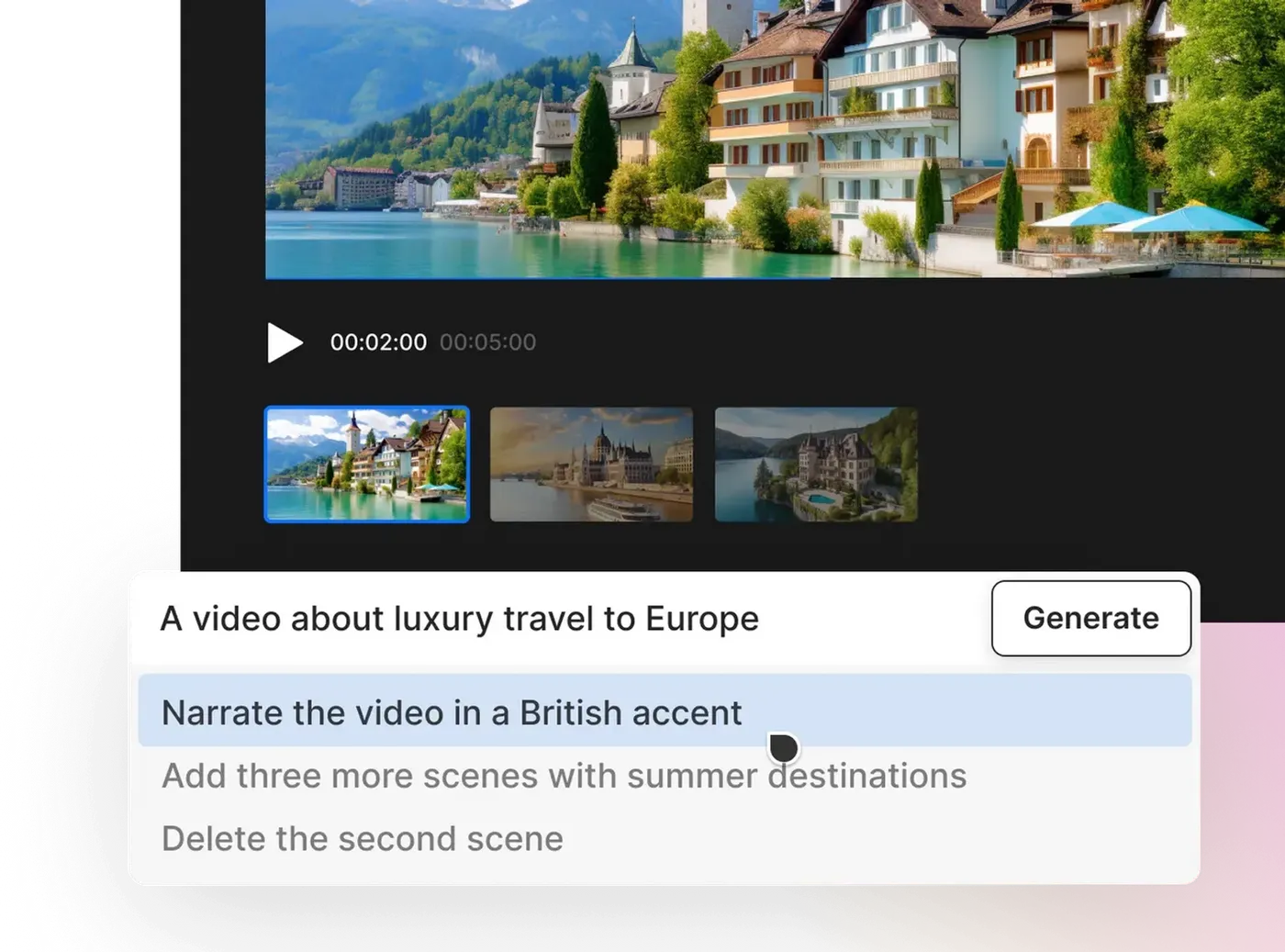
Describe the topic, audience, platform, length and tone, then let Invideo assemble a first cut that can be refined with text commands.
Open guide →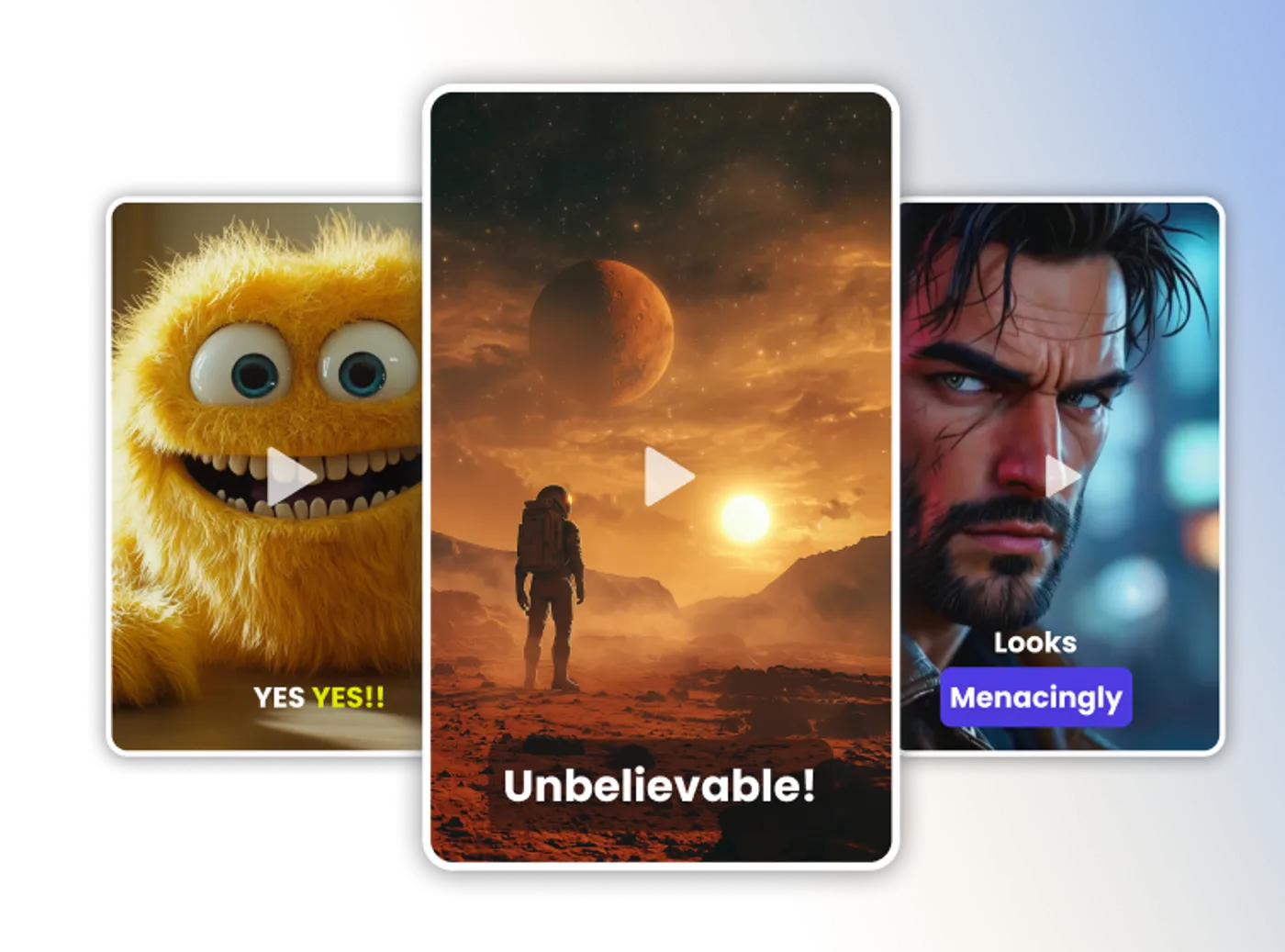
Use text instructions to adjust scenes, pacing, voiceover, subtitles and other elements without rebuilding the project from the beginning.
Open guide →Start from a prompt, script or text brief, then shape the generated scenes, voice and pacing around the intended audience.
Open guide →Upload a reference image, describe the movement and result, then refine the generated clip before it enters a larger edit.
Open guide →Choose a real, cloned or virtual presenter workflow, define the offer and format, then refine the script, scenes and product presentation.
Open guide →Choose or create an allowed avatar, add the script and voice direction, then review identity, lip sync and message accuracy.
Open guide →Give Invideo the campaign inputs, generate a structured ad, then tighten the hook, proof, visuals and final action.
Open guide →Provide the product source, audience and desired format, then shape a video that demonstrates real benefits without inventing details.
Open guide →Paste a useful source URL, set the audience and format, then review the extracted message before refining the video.
Open guide →Describe the characters, action, setting and visual language, then refine the generated animation into a coherent short video.
Open guide →Start with the topic and audience, generate the script, visuals, voice and captions, then make the result distinctive through editing and evidence.
Open guide →Create a localized version with translated narration and subtitles, then review meaning, timing and cultural fit before export.
Open guide →Write for listening, select the language and voice direction, then review pronunciation, pacing and emotion against the visuals.
Open guide →Record the required sample, create the clone, then test pronunciation and delivery before using it in published videos.
Open guide →Describe the subject, composition and style, compare outputs, then correct the visual before animation, design or editing.
Open guide →Define the topic, focal subject and viewing context, generate a starting design, then simplify it for small-screen readability.
Open guide →Use Invideo Studio when you need template-led, stock-supported or timeline-style editing rather than a fully prompt-generated first cut.
Open guide →Estimate monthly generation, models, exports and collaboration needs, then confirm the live allowance before subscribing.
Open guide →See how Invideo's generation-credit model differs from CapCut Pro's editing-subscription model before choosing a paid workflow.
See which workflow fits when faceless generation, captions and final-edit control matter more than a generic feature list.