Edit-first control matches the work.
Use CapCut Desktop when a project needs layered tracks, precise timing, keyframes, color work and AI tools in one workspace.
Use CapCut Desktop when a project needs layered tracks, precise timing, keyframes, color work and AI tools in one workspace.
Download options and feature access can vary by operating system, app version and plan.
Use CapCut Desktop when a project needs layered tracks, precise timing, keyframes, color work and AI tools in one workspace.
Use CapCut Desktop when a project needs layered tracks, precise timing, keyframes, color work and AI tools in one workspace.
Begin with a prompt, image, product link, script or existing Invideo project, then open the focused workflow built for that job.
Compare Invideo AI →Bring in footage, audio, images and brand assets.
Trim, layer, animate and grade with desktop controls.
Add captions, reframe, generate or clean up selected elements before export.
Manage multiple tracks, longer sequences and more detailed pacing.
Keep assets, revisions and polished exports in a desktop workflow.
Combine generation and automation with manual timeline control.
It suits creators who want a complete timeline, more screen space and detailed control over longer or layered projects.
CapCut presents desktop AI features such as Script to Video, Auto Reframe and Auto Captions, though access can depend on version, region and plan.
CapCut promotes a free desktop download. Premium assets, AI usage and advanced features may require a plan or credits.
Confirm the current Windows or macOS requirements, available storage and whether the features you need are included in your account.
Start with the device, task or plan that fits the work in front of you—then move directly to the official CapCut tool.
Compare the intended use, premium assets, cross-platform access, AI tools, storage and collaboration before opening checkout.
Pro is the individual upgrade path for creators who need broader AI access, premium assets, cross-platform editing and more capable production workflows.
CapCut's AI editor brings generation, captions, cleanup, reframing and enhancement into a workflow that still leaves the final timing and judgment to the editor.
Generate subtitles, correct the words and timing, then style them for Shorts, Reels, tutorials, interviews or longer videos.
Use AI-assisted clipping to identify highlights, reframe the subject and prepare several vertical drafts from one longer recording.
Compare edit-first and prompt-first video workflows.
Browse the wider task-first catalog.
Each recommendation shows why it belongs here.
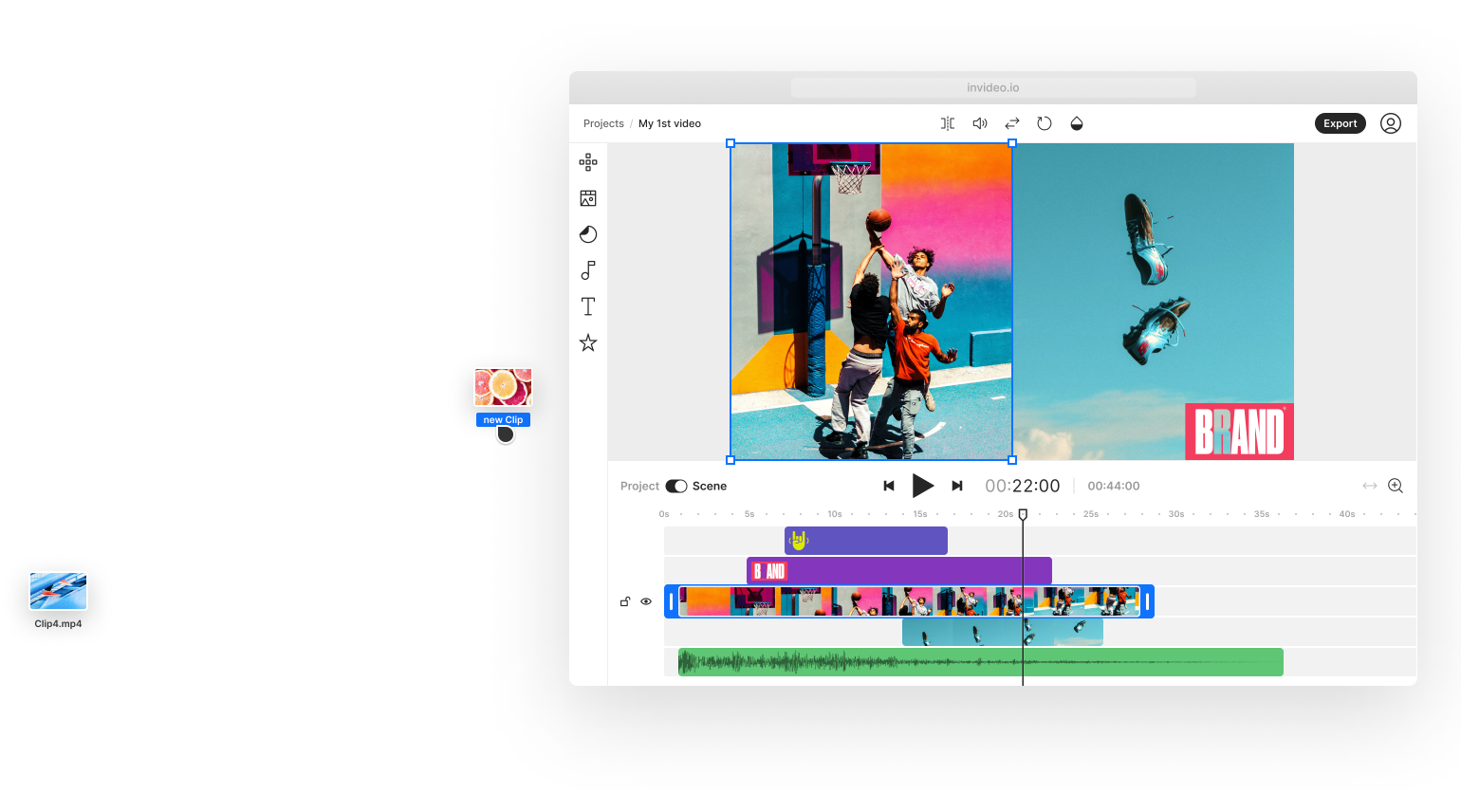
Use Invideo Studio when you need template-led, stock-supported or timeline-style editing rather than a fully prompt-generated first cut.

Use text instructions to adjust scenes, pacing, voiceover, subtitles and other elements without rebuilding the project from the beginning.

Describe the subject, composition and style, compare outputs, then correct the visual before animation, design or editing.