Edit-first control matches the work.
Choose a voice, language and delivery style, then place the generated narration directly into a CapCut timeline with captions and visuals.
Choose a voice, language and delivery style, then place the generated narration directly into a CapCut timeline with captions and visuals.
Voice libraries, languages, cloning options and credit costs can change.

Choose a voice, language and delivery style, then place the generated narration directly into a CapCut timeline with captions and visuals.
Choose a voice, language and delivery style, then place the generated narration directly into a CapCut timeline with captions and visuals.
Write for listening, select the language and voice direction, then review pronunciation, pacing and emotion against the visuals.
Compare Invideo AI Voice Generator →Use short sentences, clear pronunciation and intentional pauses.
Match language, tone, speed and emotion to the audience.
Align narration with visuals, captions and music, then listen end to end.
Create consistent narration for product or educational content.
Produce voice-led videos without recording every update.
Test multilingual narration before a final human review.
CapCut describes controls for voice choice and delivery such as speed, pitch, emotion or style, depending on the tool.
CapCut offers custom voice-related workflows, subject to current consent and availability rules.
No. Review pronunciation, pauses, loudness and music balance.
Check the current CapCut terms, selected voice rights and project requirements before commercial use.
Start with the device, task or plan that fits the work in front of you—then move directly to the official CapCut tool.
CapCut's AI editor brings generation, captions, cleanup, reframing and enhancement into a workflow that still leaves the final timing and judgment to the editor.
Generate subtitles, correct the words and timing, then style them for Shorts, Reels, tutorials, interviews or longer videos.
Use AI-assisted clipping to identify highlights, reframe the subject and prepare several vertical drafts from one longer recording.
CapCut combines speech recognition, subtitle translation, dubbing and supported voice-preservation tools for multilingual video workflows.
CapCut combines text-to-video, image animation, model choice and editing tools so a generated clip can move directly into a finished timeline.
Compare edit-first and prompt-first video workflows.
Browse the wider task-first catalog.
Each recommendation shows why it belongs here.

Start with the topic and audience, generate the script, visuals, voice and captions, then make the result distinctive through editing and evidence.
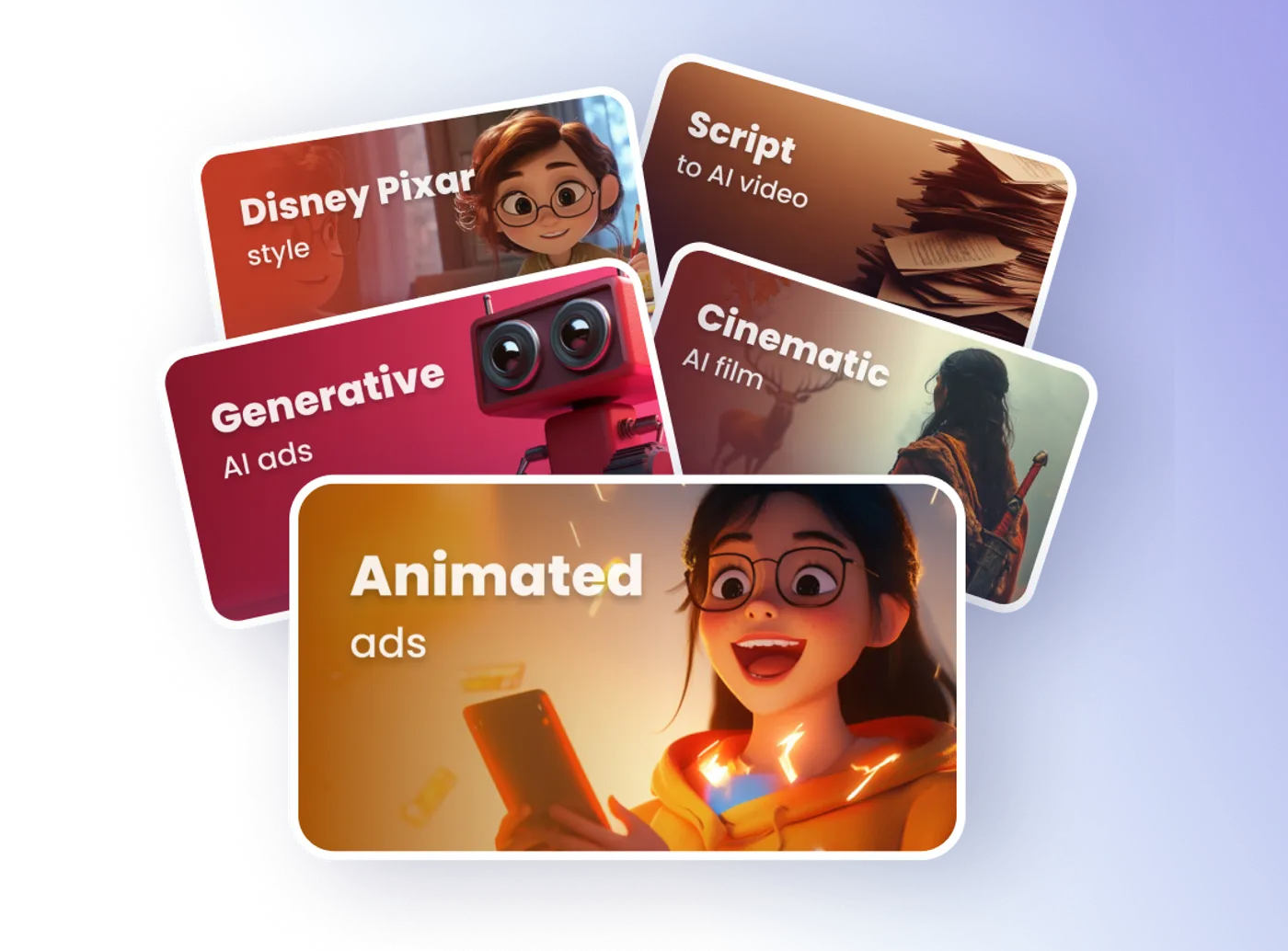
Use text instructions to adjust scenes, pacing, voiceover, subtitles and other elements without rebuilding the project from the beginning.
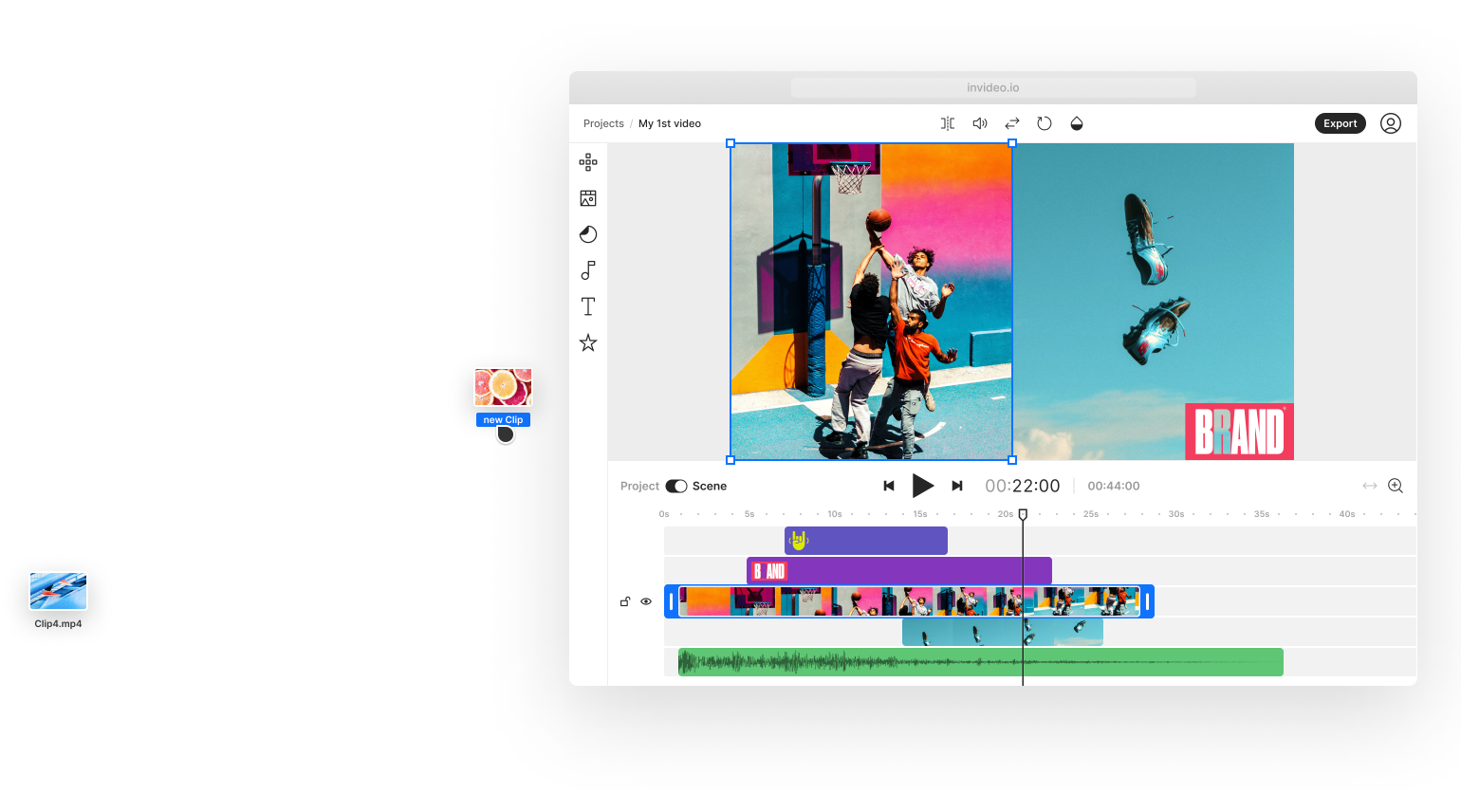
Use Invideo Studio when you need template-led, stock-supported or timeline-style editing rather than a fully prompt-generated first cut.